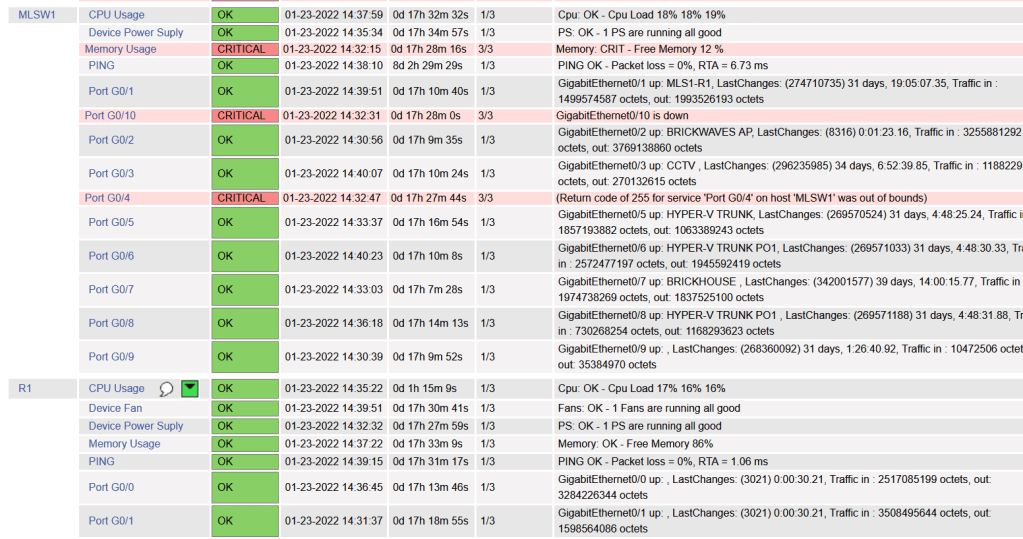
We will be installing Nagios to monitor our Cisco devices via SNMP . The device config is brief compared to the server config. I will accompany config with screenshots, as well as links at the bottom. I will be using a Ubuntu 20.04 , Cisco 3560 15.2(2) , and Cisco 194115.0(1) .
Pre-requisites:
A Cisco device (physical or virtual) to configure and poll
Ubuntu 20.04 installed- https://ubuntu.com/download/server
Not so much a must, but having a nice amount of free time to do projects helps. Troubleshooting can pop up, or you could just want to delve further into the subject. I also suggest note taking, whichever form.
Cisco Device Configuration:
-V2c
Router(config)# ip access-list standard <ACL-Name>
Router(config-std-acl)#permit <server ip address>
Router(config)# snmp-server community <chosen community string> RO <ACL-Name>
Router(config)# snmp-server location <location>
Router(config)# snmp-server contact <contact>
Router(config)# ip domain-name <domain-name>
Router(config)# snmp-server ifindex persist <– Router keeps same interface index even after reboot.
-v3
Router(config)#snmp-server view VIEW1 internet included <– Creates VIEW1 with access to everything
Router(config)#snmp-server group GROUP1 v3 priv read VIEW1 write VIEW1<– Create v3 group assigned view VIEW1
Router(config)#snmp-server user bob GROUP1 v3 auth sha cisco123 priv aes 128 juniper1 <– Creates user bob nested in GROUP1, authentication hashing algorithm is sha. Authentication password is cisco123. Encryption algorithm is aes 128 with password juniper1
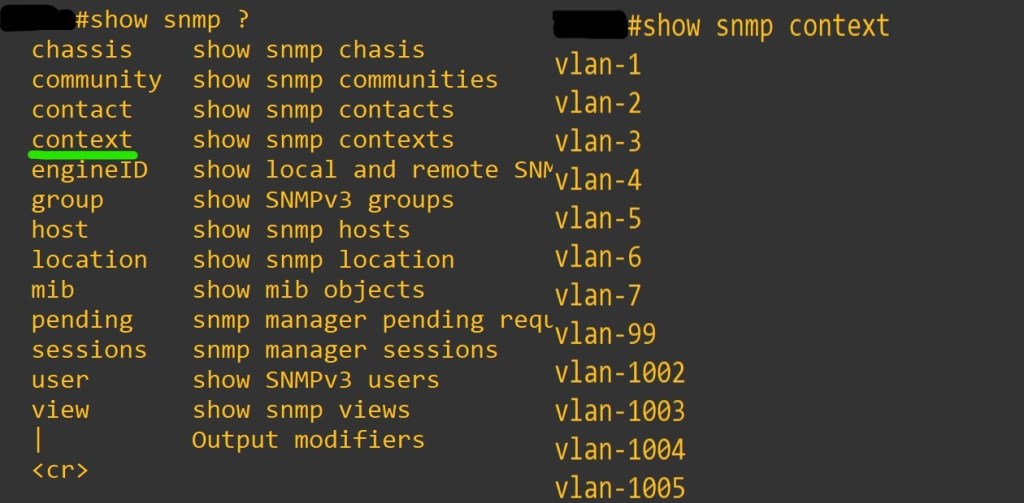
Router(config)#snmp-server group GROUP1 v3 auth context vlan- match prefix <– You must use contexts to get per-VLAN data from the BRIDGE-MIB with SNMPv3.Not all the IOS switches support this. In general, if the device supports the “show snmp context” command, contexts will work. If not, an upgrade is needed. However, some switches (e.g. 2950 series) will never support SNMPv3 contexts. You must use v1/v2c with these switches.
Router(config)# snmp-server ifindex persist <– Router keeps same interface index even after reboot.


Now the Nagios Server. I thought text would be more appropriate for copy and paste. I know we all get enough typing practice.
Needed Files:
http://www.techspacekh.com/wp-content/uploads/check_cisco.zip
http://www.techspacekh.com/wp-content/uploads/check_cisco_switch.zip
sudo apt update
-Install Dependencies
sudo apt install -y autoconf bc gawk dc build-essential gcc libc6 make wget unzip apache2 php libapache2-mod-php libgd-dev libmcrypt-dev make libssl-dev snmp libnet-snmp-perl gettext
-Navigate to home directory
cd ~/
-Download Nagios Core 4.4.6
sudo wget https://github.com/NagiosEnterprises/nagioscore/archive/nagios-4.4.6.tar.gz
-Extract the Nagios Package and navigate to extracted Nagios Directory
sudo tar -xf nagios-4.4.6.tar.gz
cd nagioscore-*/
-Compile and Install Nagios
sudo ./configure –with-httpd-conf=/etc/apache2/sites-enabled
sudo make all
-Create the Nadios user and group, and add the ‘www-data’ Apache user to the ‘nagios’ group
sudo make install-groups-users
sudo make install-commandmodeudo usermod -a -G nagios www-data
-Install Nagios binaries, service daemon script, and the command mode.
sudo make install
sudo make install-daemoninit
sudo make install-commandmode
-Install the sample script configuration
sudo make install-config
-Install the Apache configuration for Nadios and activate the mod_rewrite and mode_cgi modules.
sudo make install-webconf
sudo a2enmod rewrite cgi
-Restart Apache service
sudo systemctl restart apache2
-Create nagiosadmin user. This is the user we will use to login to web interface.
sudo htpasswd -c /usr/local/nagios/etc/htpasswd.users nagiosadmin
-Setup UFW Firewall
sudo ufw allow apache
sudo ufw allow ssh
sudo ufw enable
y
sudo ufw status numbered
-Install Nagios Plugins and NRPE Plugin
sudo apt install monitoring-plugins nagios-nrpe-plugin
-Once installation completes go to the nagios installation directory /usr/local/nagios/etc
cd /usr/local/nagios/etc
sudo mkdir -p cisco/{remotehosts,commands,servicegroups,hostgroups}
-Now we need to edit Nagios config to load our config directory
sudo vi nagios.cfg
-add line
cfg_dir=/usr/local/nagios/etc/cisco
:wq
save and close

-The two plugins downloaded at the beginning must be placed into the /usr/local/nagios/libexec dir

-Let’s create a hostgroup for out cisco devices
cd /usr/local/nagios/cisco
sudo vi hostgroups/cisco-devices.cfg
– add this text
define hostgroup{
hostgroup_name cisco-devices
alias Cisco_devices
}
-save and close
-Then we need to define our hosts and services
sudo vi remotehosts/<hostname>.cfg
define service{
use generic-service
host_name <hostname>
service_description CPU Usage
check_command check_cisco_switch!<community-string>!cpu!60!70
servicegroups cpu-usage
}
define service{
use generic-service
host_name <hostname>
service_description Device Fan
check_command check_cisco_switch!<community-string>!fan
servicegroups device-fan
}
define service{
use generic-service
host_name <hostname>
service_description Device Power Suply
check_command check_cisco_switch!<community-string>!ps
servicegroups device-powersupply
}
define service{
use generic-service
host_name <hostname>
service_description Port G0/0
check_command check_cisco_int!<community-string>!G0/0
servicegroups cisco-interfacestatus
}
define service{
use generic-service
host_name <hostname>
service_description Port G0/1
check_command check_cisco_int!<community-string>!G0/1
servicegroups cisco-interfacestatus
}
-You can add and remove services as you like, just remember the commands. Example is my 3560 doesn’t have a fans, so I removed that service.
-Next service groups
sudo vi servicegroups/cisco-services.cfg
define servicegroup{
servicegroup_name memory-usage
alias Memory Usage
}
define servicegroup{
servicegroup_name cpu-usage
alias CPU Usage
}
define servicegroup{
servicegroup_name device-fan
alias Device Fan
}
define servicegroup{
servicegroup_name device-powersupply
alias Device Power Supply
}
define servicegroup{
servicegroup_name cisco-interfacestatus
alias Cisco Interface Status
}
-Next the commands
sudo vi commands/check_cisco.cfg
define command{
command_name check_cisco_switch
command_line /usr/local/nagios/libexec/check_cisco_switch.pl -H $HOSTADDRESS$ -C $ARG1$ -t $ARG2$ -w $ARG3$ -c $ARG4$
}
define command{
command_name check_cisco_int
command_line /usr/local/nagios/libexec/check_cisco.pl -H $HOSTADDRESS$ -C $ARG1$ -i $ARG2$
}
-If you get a error about can’t find MIBs, enter in these commands.
sudo apt-get install snmp-mibs-downloader
sudo download-mibs
sudo sed -i “s/^(mibs :)./#\1/” /etc/snmp/snmp.conf
sudo service snmpd restart
-Restart Nagios
sudo systemctl restart nagios
-You can reach the server by typing in a browser URI box
<your server ip>/nagios
-you will be met with a prompt for credential. Enter in the credentials defined earlier
sudo htpasswd -c /usr/local/nagios/etc/htpasswd.users nagiosadmin
As always thank you for your time. There is so much more to learn about device management. Nagios isn’t perfect but projects like this deal with quite a bit of troubleshooting. I find them great to learn about things you would of otherwise just skimmed by.
Links:
https://www.cisco.com/c/en/us/td/docs/ios-xml/ios/snmp/configuration/xe-3se/3850/snmp-xe-3se-3850-book/nm-snmp-snmpv3.html#GUID-E9B523ED-2DEE-44AE-BBEC-ABE75EF40B2A
http://www.techspacekh.com/monitoring-cisco-switch-with-nagios-core-web-application/
https://www.howtoforge.com/tutorial/how-to-install-nagios-on-ubuntu-2004/
https://switchportmapper.com/support-mapping-a-cisco-switch-using-snmpv3.htm
https://community.cisco.com/t5/network-management/endhost-unreachable/td-p/2244599#3960325
https://networkengineering.stackexchange.com/questions/59039/cisco-ios-version-changes-for-snmpv3-server-group-context
https://www.cisco.com/c/en/us/td/docs/security/asa/snmp/guide/snmp-version-3-tools-implementation-guide/using-network-management-tools.html
 Tech-Lee Blog
[…] Short video talking about the fun I had configuring Nagios server for the first time. Cisco Device Management: Nagios Ubuntu 20.04 […]
LikeLike